- AI Engineering
- Posts
- Fine-tune Gemma 4 locally
Fine-tune Gemma 4 locally
... PLUS: Voxtral TTS: Open Source 4B text-to-speech model

Sumanth P
April 09, 2026
In today's newsletter:
Voxtral TTS: Open Source 4B text-to-speech model
Hands-on: Fine-Tune Gemma 4 locally With Unsloth Studio
Reading time: 5 minutes.
Mistral AI released Voxtral TTS, an open-source text-to-speech model that can generate natural, expressive speech and can clone a voice from a few seconds of audio clip.
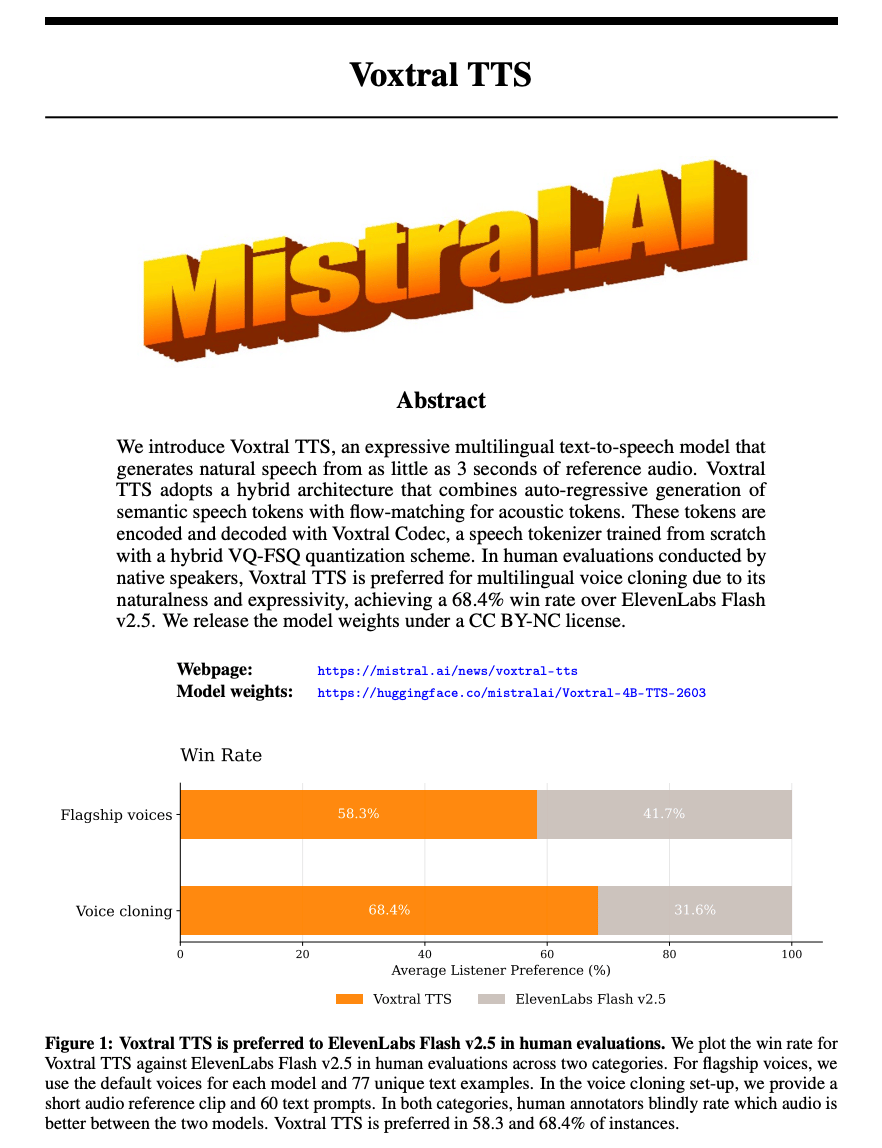
Here's what makes it different. Most TTS models need cloud GPUs and long audio samples. Voxtral runs locally on your phone or laptop and generates voice clones from 3 seconds.
The model is 4B parameters. Small enough to fit on a smartphone but accurate enough to capture accents, inflections, intonations, and even vocal fillers like "ums" and "ahs" from the reference voice.
Google released Gemma 4.
Four model sizes: E2B, E4B, 26B-A4B (MoE), and 31B. All Apache 2.0 licensed. All supporting multimodal input (text, images, audio).
The benchmark gains are significant. AIME 2026 math jumps from 20.8% to 89.2%. LiveCodeBench coding from 29.1% to 80.0%.
You can now fine-tune all four variants locally using UnslothAI.
This guide walks through the complete setup process.
The Models:
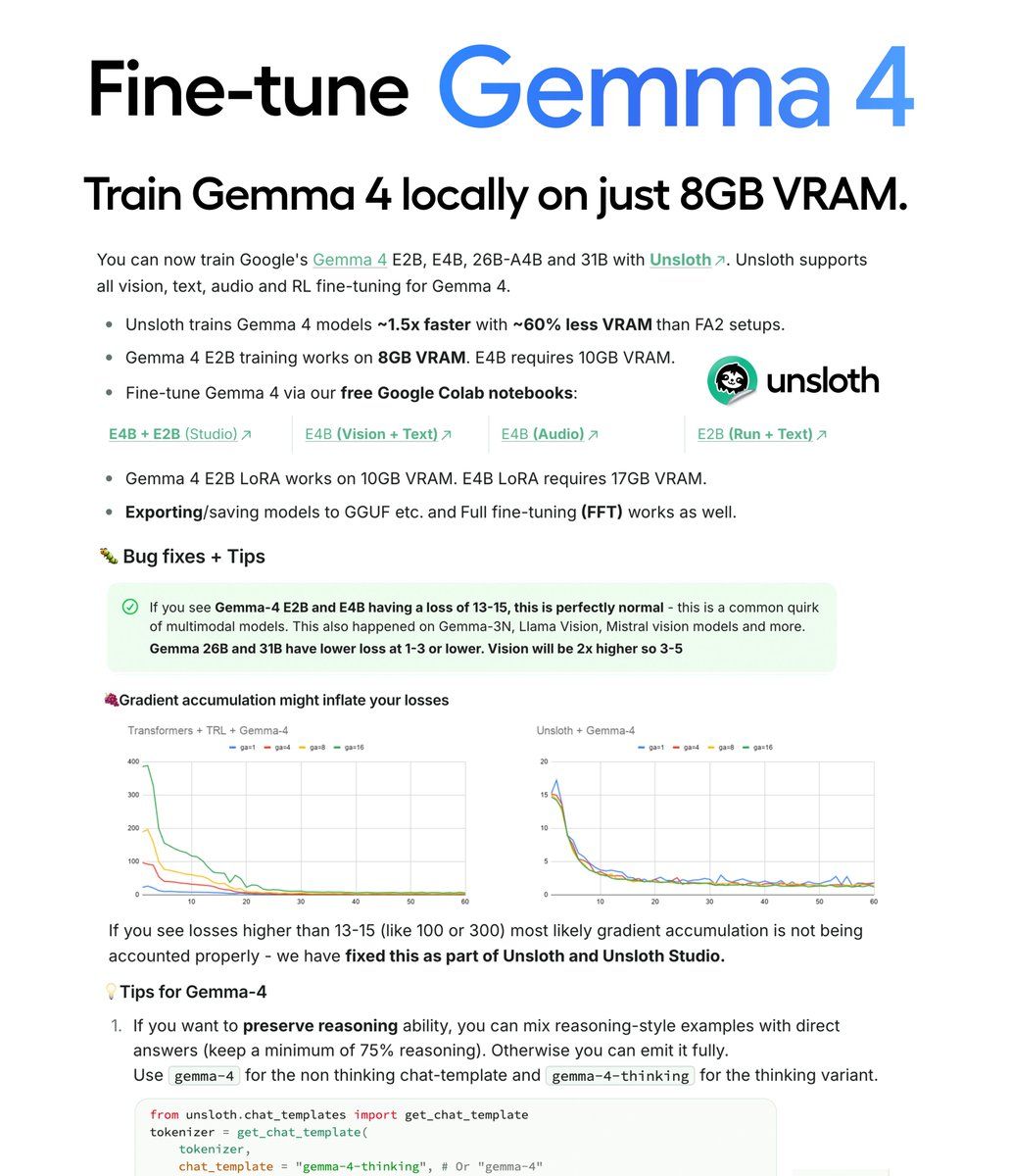
E2B and E4B - Built for edge deployment. Run on phones, laptops, Raspberry Pi. Support text, images, and audio. E2B trains on 8GB VRAM. E4B requires 10GB VRAM.
26B-A4B - Mixture-of-Experts model. Speed and quality middle ground. Requires A100 GPU. Use LoRA with 16-bit bf16.
31B - Highest quality option. Use when quality matters more than memory constraints. Requires A100 GPU.
Why Unsloth:
Unsloth trains Gemma 4 models 1.5x faster with 60% less VRAM compared to standard training.
For developers without expensive hardware, this is the difference between fine-tuning being possible or not.
E2B LoRA works on 8-10GB VRAM. E4B LoRA requires 17GB. The 31B with QLoRA works on 22GB.
Unsloth Studio handles the entire workflow through a visual interface. No Python code required.
Setup
Step 1: Install Unsloth Studio
macOS/Linux/WSL:
curl -fsSL https://unsloth.ai/install.sh | shWindows PowerShell:
irm https://unsloth.ai/install.ps1 | iexInstallation takes 1-2 minutes.
Step 2: Launch Unsloth
unsloth studio -H 0.0.0.0 -p 8888This starts the local web interface. Open http://localhost:8888 in your browser.
On first launch, you'll create a password to secure your account. Then you'll see an onboarding wizard to choose a model, dataset, and basic settings. You can skip it anytime.

Step 3: Configure your model and dataset
Search for Gemma 4 in the model search bar. Select your variant (E2B, E4B, 26B-A4B, or 31B).
Choose LoRA 16-bit as your training method for E4B. Use QLoRA for larger models on limited VRAM.
Select your dataset from HuggingFace or upload your own.
Adjust context length, learning rate, and hyperparameters as needed.
Step 4: Prepare your dataset
Four formatting rules specific to Gemma 4:
Use standard chat roles: system, user, assistant
Thinking mode is explicit: Add <|think|> at the start of your system prompt to enable it. Use gemma-4-thinkingchat template for thinking mode, gemma-4 for standard mode. Do not mix formats in the same dataset.
Multi-turn conversations: Only keep the final visible answer in history. Do not feed earlier thought blocks back into later turns.
Multimodal prompts: Always put image or audio before the text instruction.
Example format for vision:
{
  "messages": [
    {
      "role": "user",
      "content": [
        {"type": "image", "image": "/path/to/image"},
        {"type": "text", "text": "Describe this image"}
      ]
    },
    {
      "role": "assistant",
      "content": [
        {"type": "text", "text": "This image shows..."}
      ]
    }
  ]
}
Step 5: Train
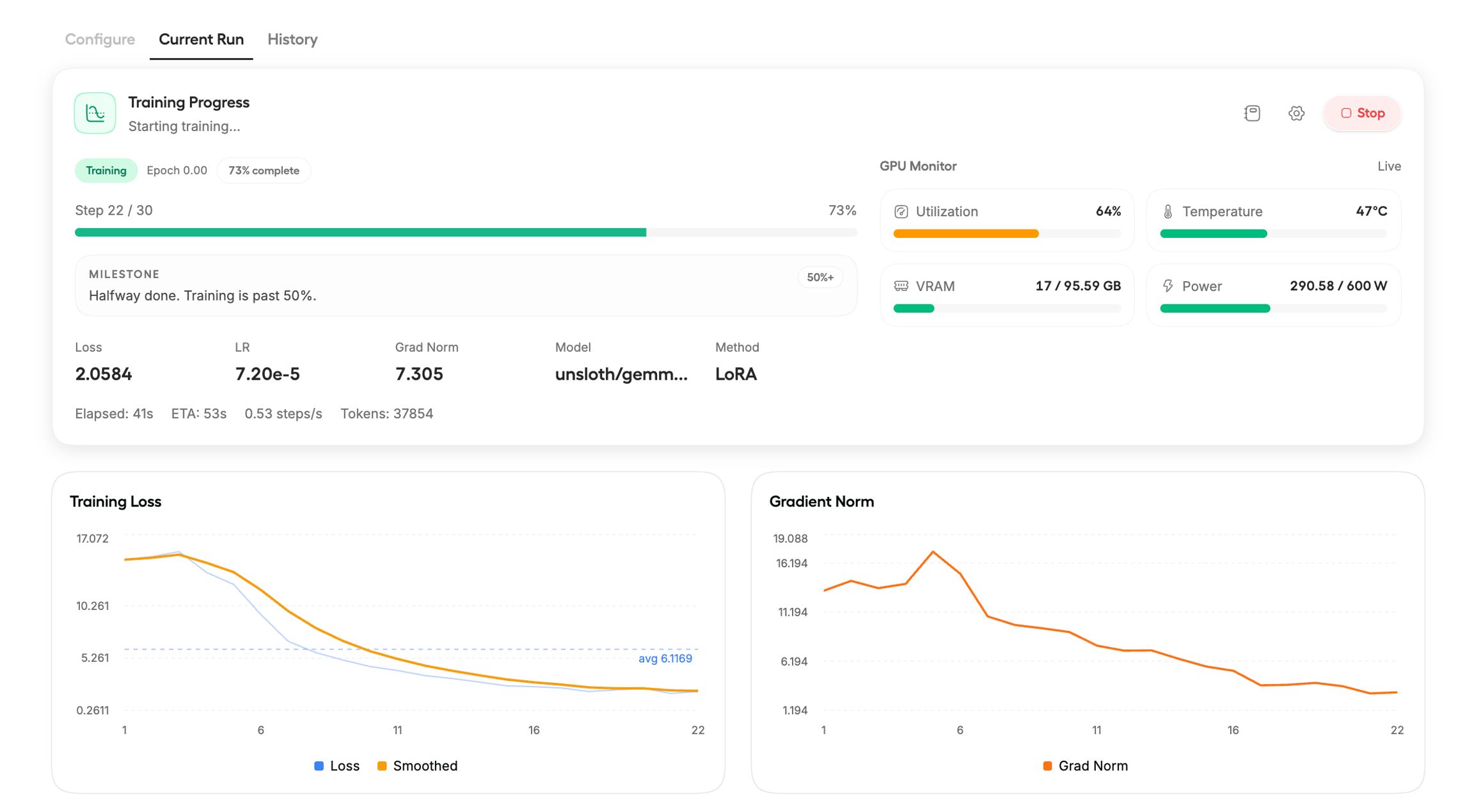
Click Start Training.
Training loss and gradient norm update in real time. A healthy run shows steadily decreasing loss.
E2B and E4B multimodal models typically show loss of 13-15. This is normal. Text-only Gemma 26B and 31B have lower loss at 1-3.
The model saves automatically when training completes.
Step 6: Export your model
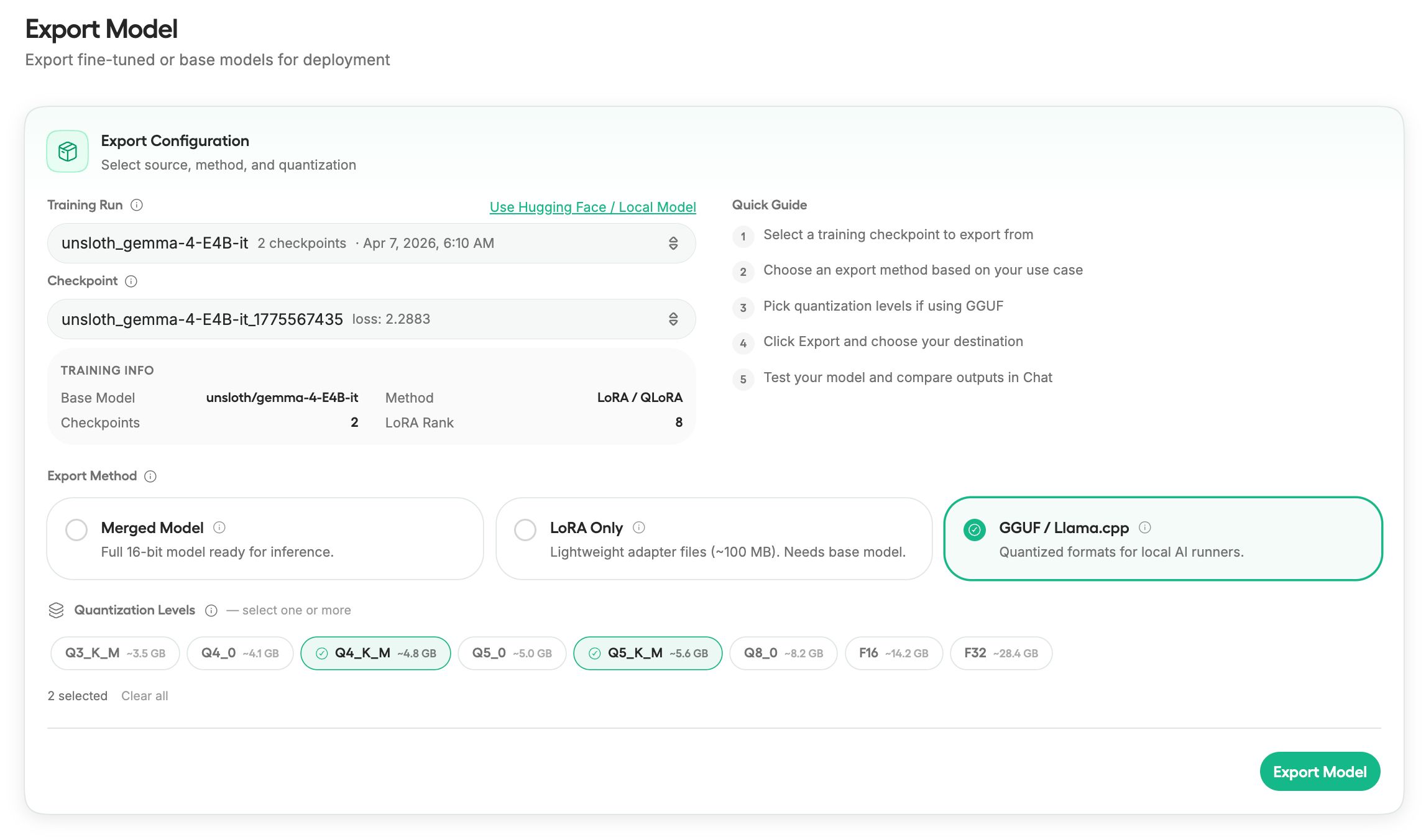
Once training is complete, export to three formats:
Full merged 16-bit model - Ready for inference
LoRA adapter files only - Smaller, can be loaded separately
GGUF - For llama.cpp, Ollama, LM Studio
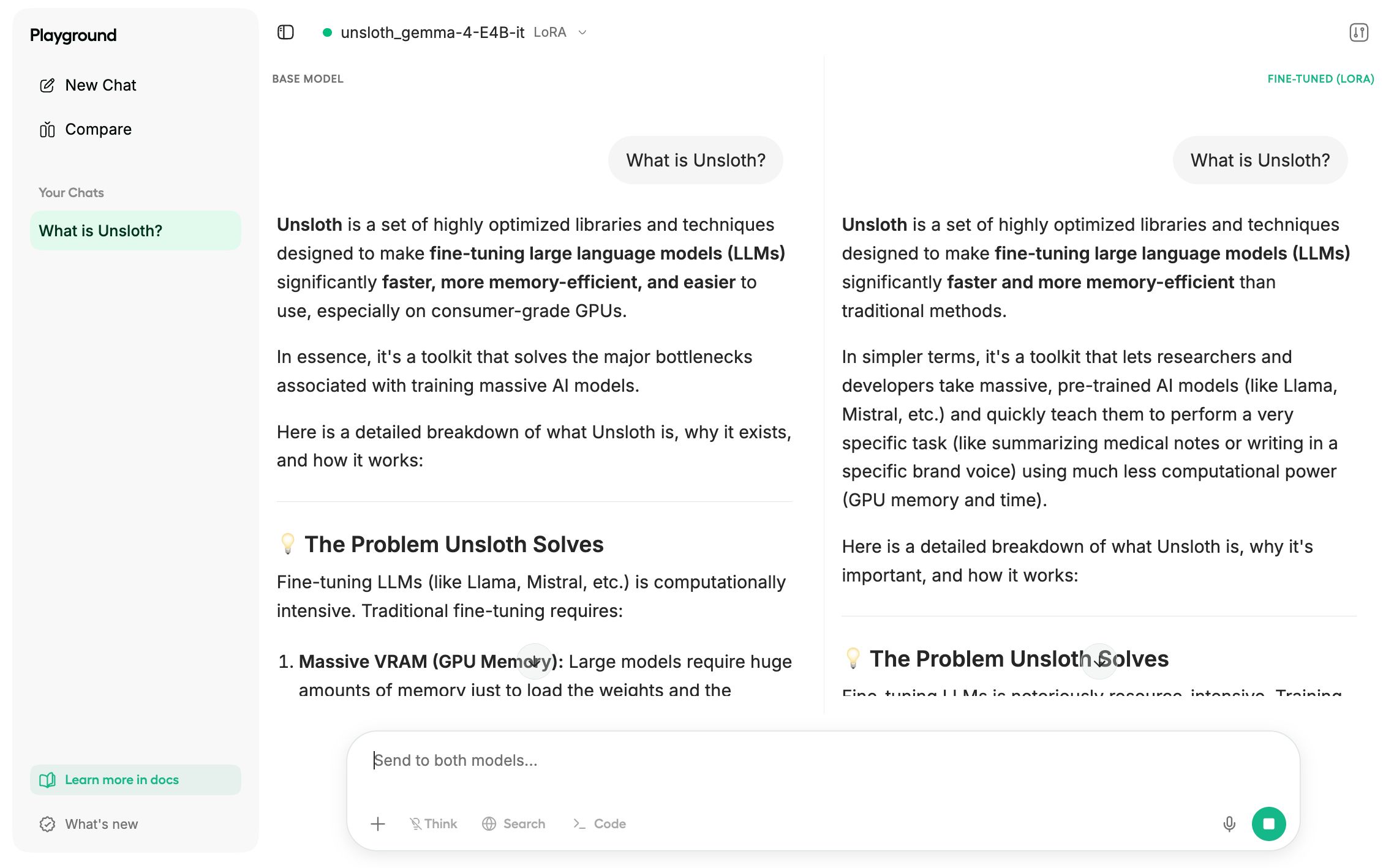
Click “Compare Mode” to compare your fine-tuned model against the original.
Tips for Better Results:
To preserve reasoning ability: Mix reasoning-style examples with direct answers. Keep a minimum of 75% reasoning examples in your dataset. Use the gemma-4-thinking chat template for larger 26B and 31B models.
For E4B vs E2B: Train E4B QLoRA rather than E2B LoRA. E4B is larger and the quantization accuracy difference is minimal.
If you see high loss: Losses higher than 13-15 (like 100 or 300) indicate gradient accumulation isn't being accounted for properly. Unsloth and Unsloth Studio fix this automatically.
If exported model behaves worse: The most common cause is wrong chat template or EOS token at inference time. Use the same chat template you trained with.
What This Enables:
Gemma 4 is powerful for multilingual fine-tuning. It supports 140 languages.
The E2B and E4B variants enable on-device deployment. Fine-tune once, run locally on phones and laptops.
The 31B variant enables highest-quality specialized models when you need performance over efficiency.
That’s all for today. Thank you for reading today’s edition. See you in the next issue with more AI Engineering insights.
PS: We curate this AI Engineering content for free, and your support means everything. If you find value in what you read, consider sharing it with a friend or two.
Your feedback is valuable: If there’s a topic you’re stuck on or curious about, reply to this email. We’re building this for you, and your feedback helps shape what we send.
WORK WITH US
Looking to promote your company, product, or service to 200K+ AI developers? Get in touch today by replying to this email.